Troubleshooting
Why a compressed image can get bigger: a reproducible example
See a 7,864-byte PNG become a 56,394-byte JPEG, inspect the source files, and decide whether resizing or another format is the better next step.
The word “compress” on a button does not guarantee a smaller file. Imgkind decodes the source and exports a new file. Its encoder, output format, and handling of transparency can differ from the original.
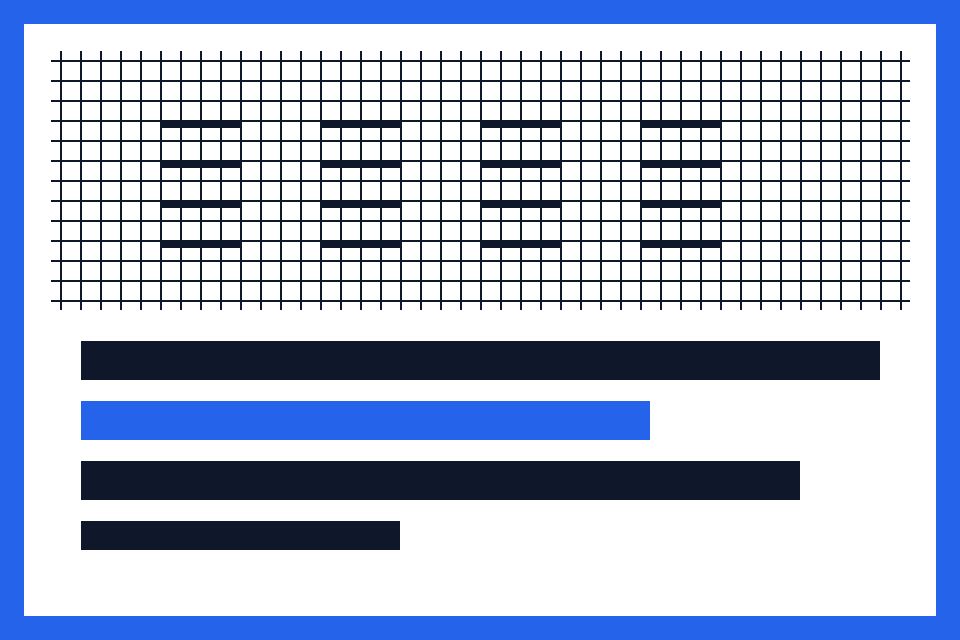
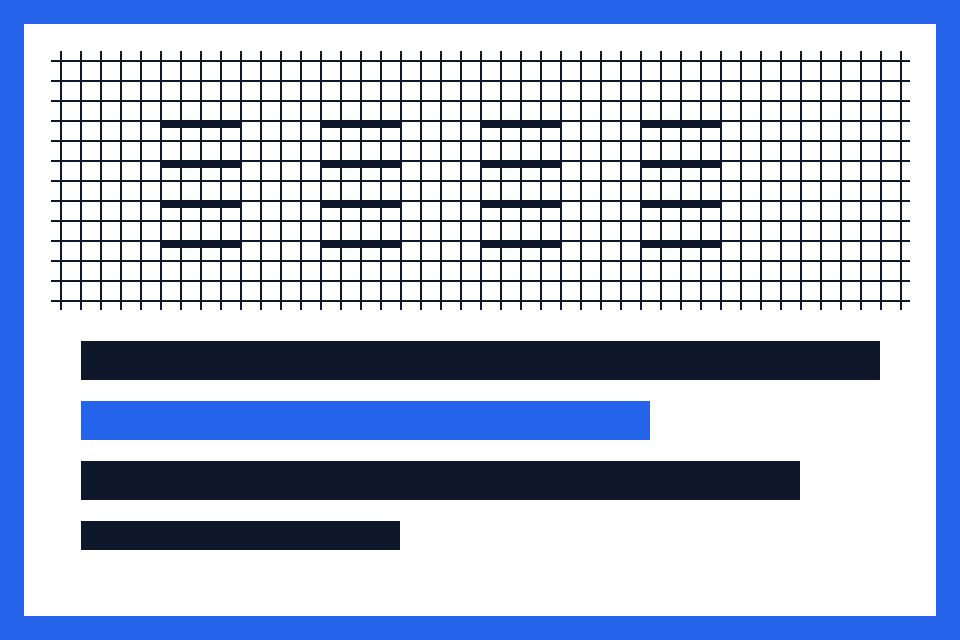
Our synthetic line chart started at 7,864 bytes. JPEG quality 80 produced 56,394 bytes, and a PNG re-export produced 16,959 bytes. Both grew. These are measurements of actual outputs, not estimated savings.
What happened to the line chart?
The source has repeated flat areas and sharp lines. In this test, its original PNG coding was a better size match than the tested JPEG setting. The JPEG is about 7.2 times the source byte count; it is not proof that JPEG is larger for all images.
Re-exporting to PNG also changed the byte count. “PNG output” does not mean “copy the input PNG bytes.” Different encoding choices can preserve an image while producing another file size.
Choose a next step based on what must stay
If exact pixels and appearance already meet your destination’s rules, the original may be the best file to upload. You do not need to accept a new result merely because it was generated.
If you need fewer bytes, try reducing dimensions only when the destination allows it. If the file must keep transparency or small labels, inspect those properties before choosing a smaller candidate.
A short diagnosis checklist
Read the individual size row, confirm that you did not change to a format with different properties, and inspect the result at its intended size. If you selected PNG, lowering quality is not a size-control mechanism in this tool.
- Check the source byte count, not only a rounded operating-system label.
- Check whether output pixels stayed the same.
- Check whether an alpha channel was flattened.
- Retry from the original, changing one setting at a time.
Original experiment: files and measurements
Measured on 12 October 2026 in the Codex in-app browser on macOS, using the Imgkind Canvas compressor. Inputs are our synthetic PNG graphics. Dimensions were unchanged; JPEG and WebP used quality 80. PNG ignores that quality setting. Values below are exact bytes; the tool’s KB display uses 1024 bytes per KB.
| Sample | Original PNG | JPEG · 80 | WebP · 80 | PNG |
|---|---|---|---|---|
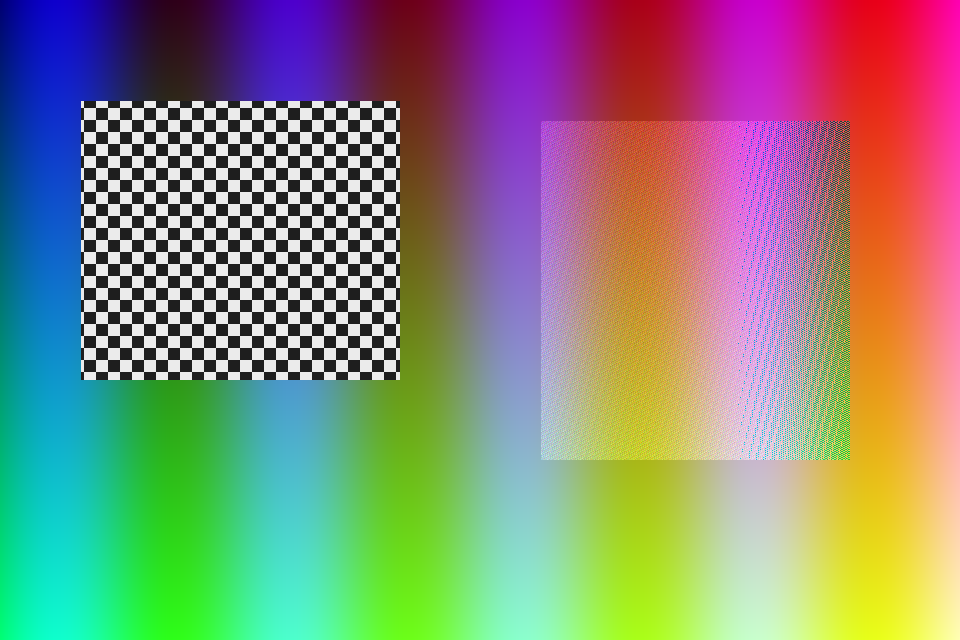
| Gradient and detail grid960 × 640 px | 706,133 B | 61,795 B | 44,200 B | 138,496 B |
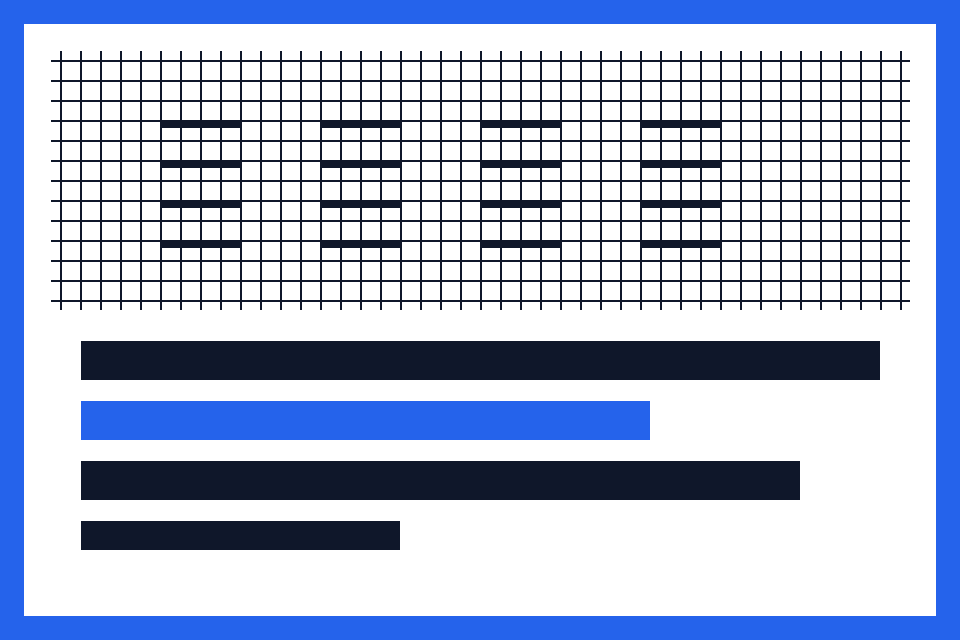
| Sharp line chart960 × 640 px | 7,864 B | 56,394 B | 11,650 B | 16,959 B |
| Transparent mark512 × 512 px | 12,078 B | 7,872 B | 7,404 B | 23,522 B |
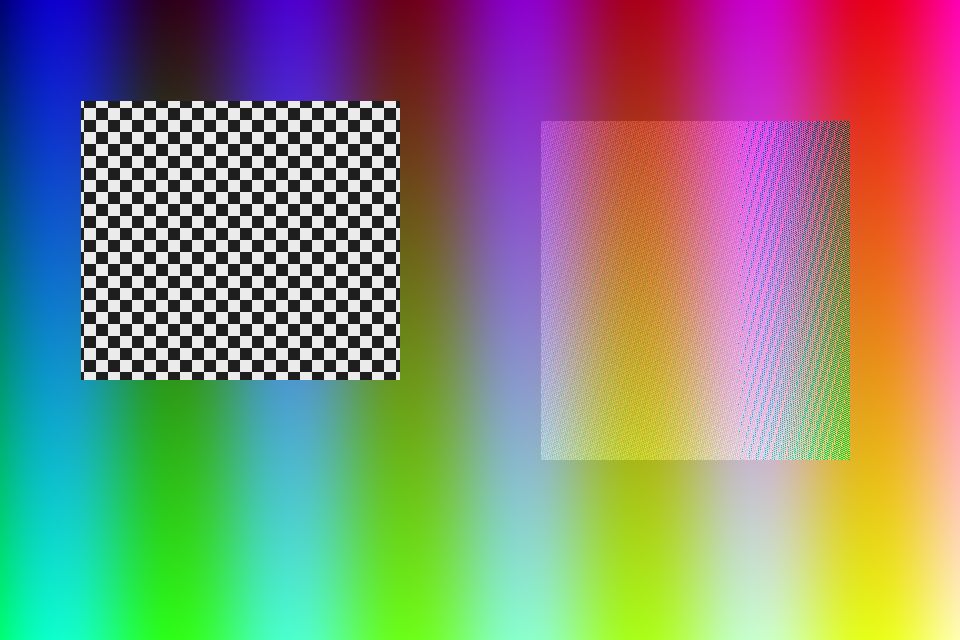
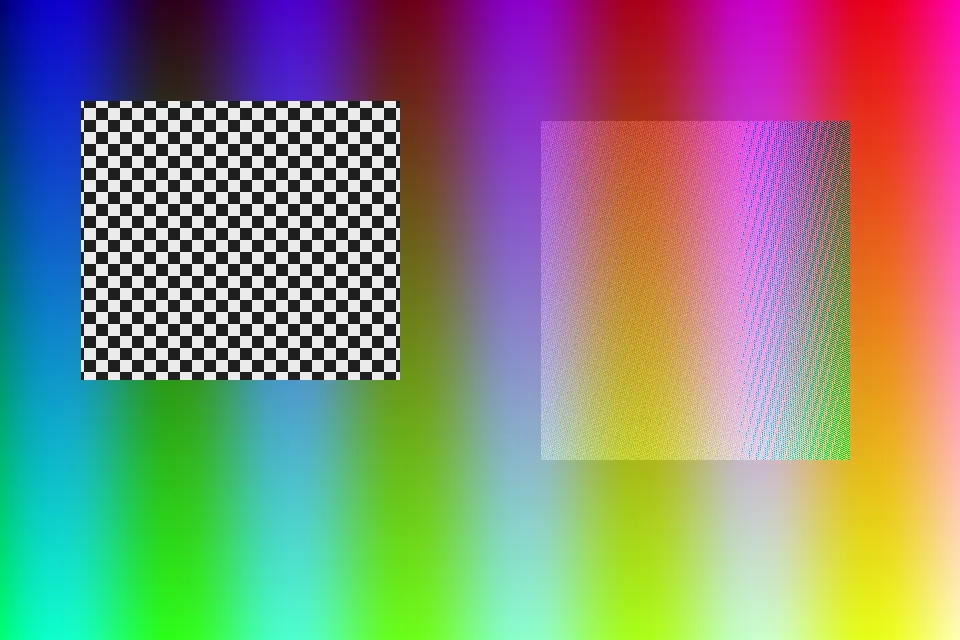
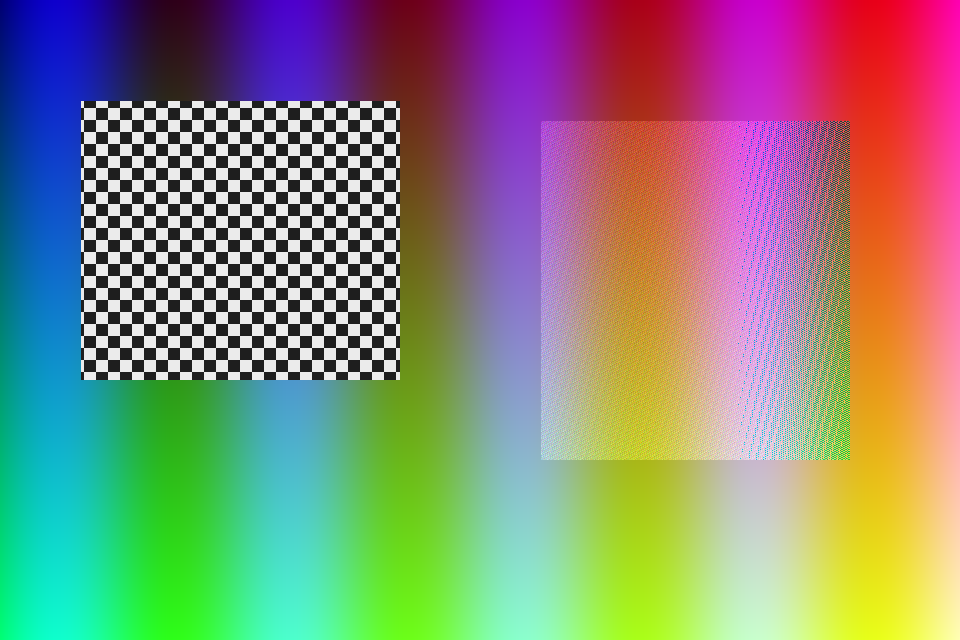
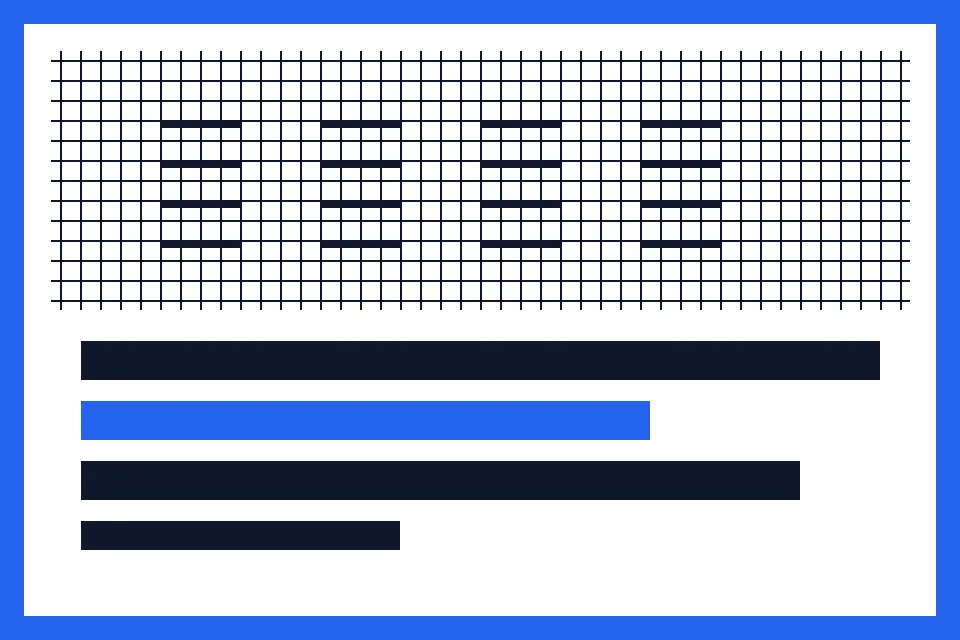



These three samples do not represent all photos or documents. A matching quality number does not imply equal visual quality. JPEG fills transparency with white; this changes the asset. Different browsers may produce different bytes. Reproduce the experiment using the included originals and source generator.

Steps
- Download the source line chart from this article.
- Export it through Image Compressor as JPEG at quality 80.
- Compare your result with the downloadable measured output; another browser can produce different bytes.
- Repeat using PNG and inspect the file size without expecting the quality slider to control it.
- Keep the best acceptable version and preserve the source separately.
Helpful tips
- A ZIP is a download container; do not expect it to solve a poorly matched image encoding.
- PNG re-encoding can produce a larger file without implying that the source became sharper.
- A smaller transparent mark flattened onto white is not a like-for-like transparent replacement.
Frequently asked questions
Is a larger output a software error?
Not necessarily. It can be a normal outcome of re-encoding with a different encoder or format.
Will a lower quality value shrink PNG?
Not in the current Imgkind compressor. Its PNG branch ignores that lossy quality parameter.
Does the tool automatically return my original?
No. Download the original separately or keep your source file when the new output is not useful.